Linking an Azure Account
To link an AWS Cloud account with your pgEdge Cloud account, select the Cloud Accounts heading in the left navigation pane and then the + Link Cloud Account button.
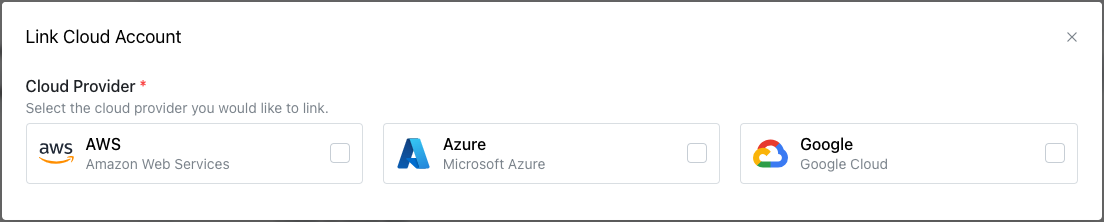
On the Link Cloud Account dialog, select the Azure icon to expand the dialog.
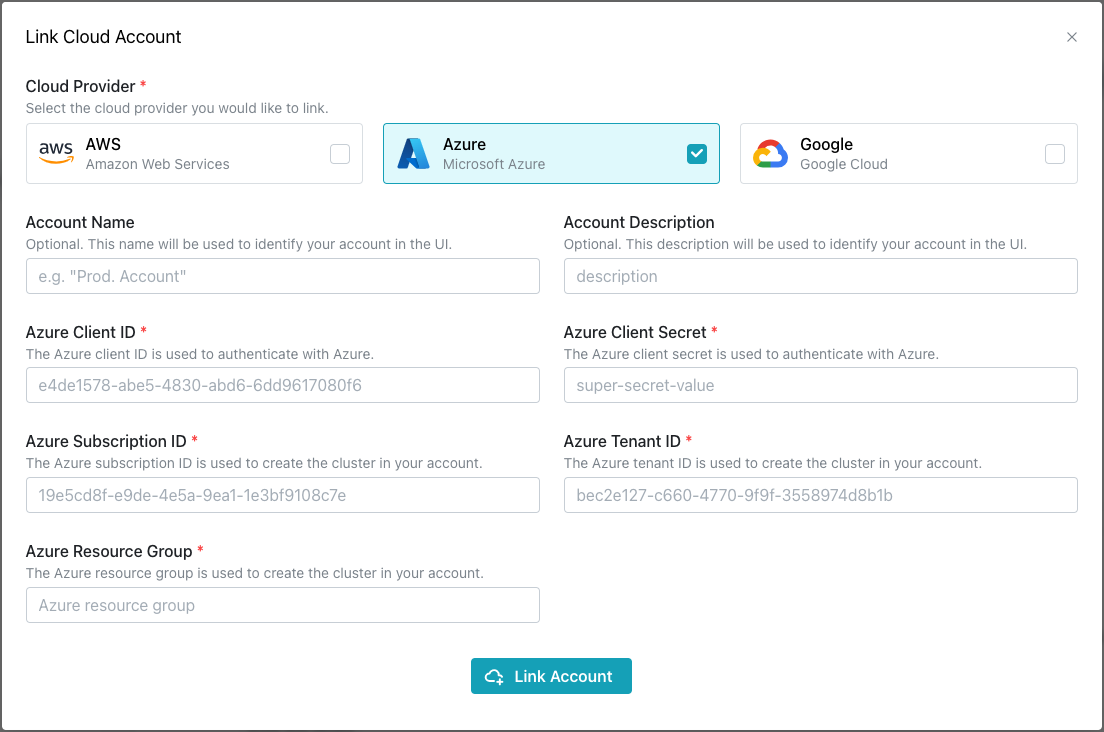
Use the fields in the dialog to create a link to your Azure account:
- Provide a user-friendly name in the
Account Namefield. - Provide an account description in the
Account Descriptionfield. - Provide your Client ID in the
Azure Client IDfield. - Provide your Client Secret in the
Azure Client Secretfield. - Provide your Subscription ID in the
Azure Subscription IDfield. To find your subscription ID in the Azure console, go toAll services-->Subscriptions-->Subscription ID. - Provide your Tenant ID in the
Azure Tenant IDfield. To find your tenant ID in the Azure console, go toAzure Active Directory-->Properties-->Directory ID. - Provide your Resource Group in the
Azure Resource Groupfield.
After providing connection information, select Link Account to create the link to your Azure account.