Getting Started with pgEdge Cloud Developer Edition
Signing up for pgEdge Developer Edition is easy; simply navigate to the pgEdge sign-in page (opens in a new tab) and provide a name and password, or log in with your Google or Github account.
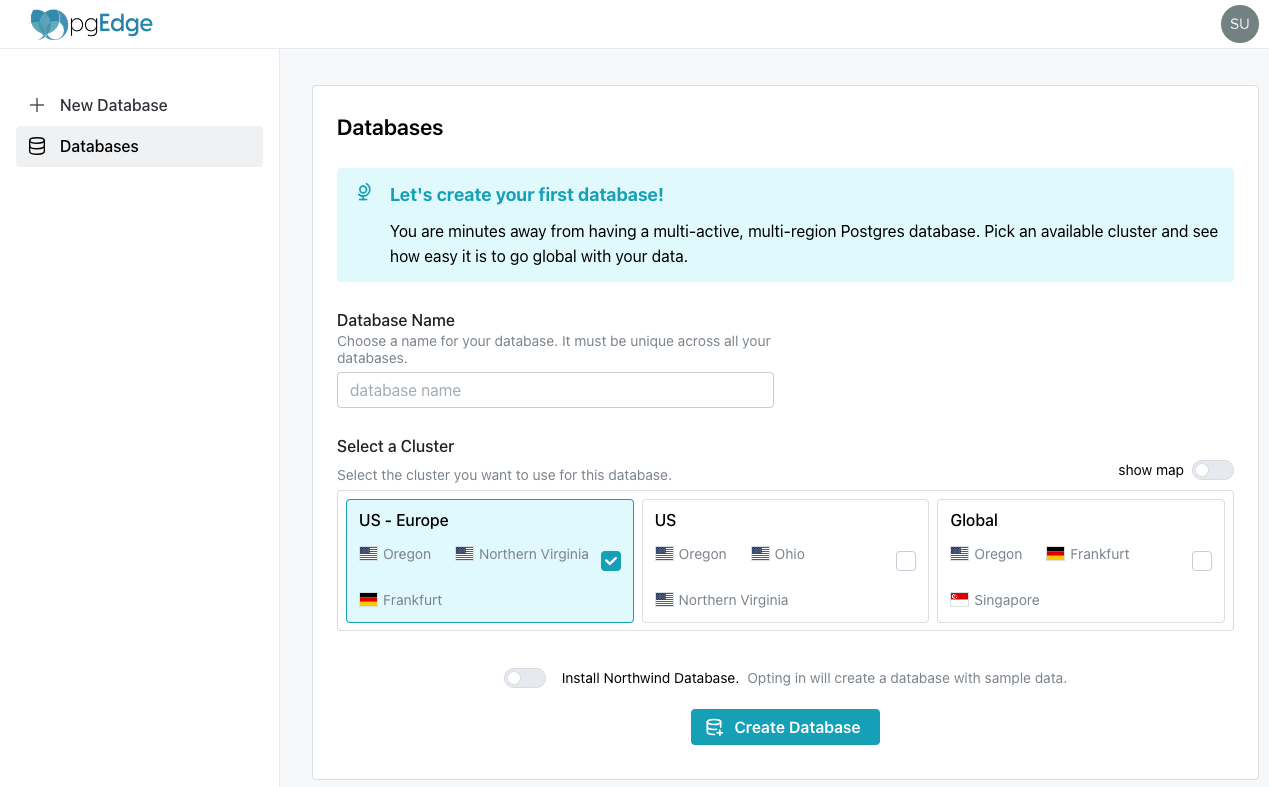
After signing up, you can create use the pgEdge Cloud console to create a database:
- Provide a unique name for the database in the
Database Namefield. - Check the box next to a cluster configuration in the
Select a Clusterfield. You can use theshow maptoggle to review a map displaying each configuration. - To install sample data, toggle the
Install Northwind Databaseswitch.
Then, select the Create Database button to initialize the database.
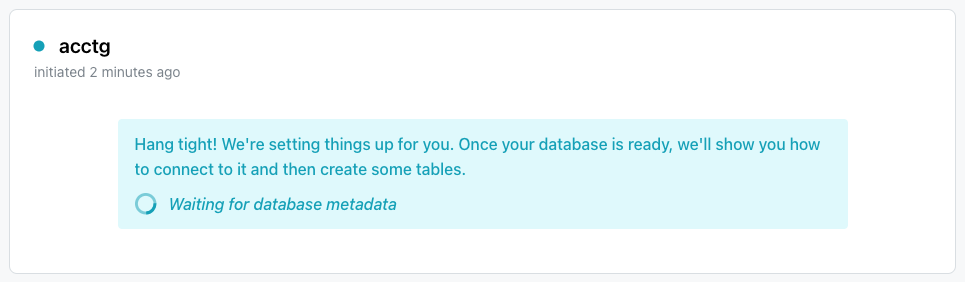
When the database is ready, the pgEdge Cloud Console displays the database name in the navigation tree. Select the database name to start using your database.
pgEdge Resources
Use the links in the lower-left corner of the console to access pgEdge resources:
- For an invitation to the pgEdge Discord server, select the
Communitylink. - To review the documentation, select the
Docslink.